Step-by-step guide

How to apply for installment or layaway

About 5–10 minutes on your phone. Nothing to pay until you're approved.

  • Nothing to pay today
  • Phone photos are fine
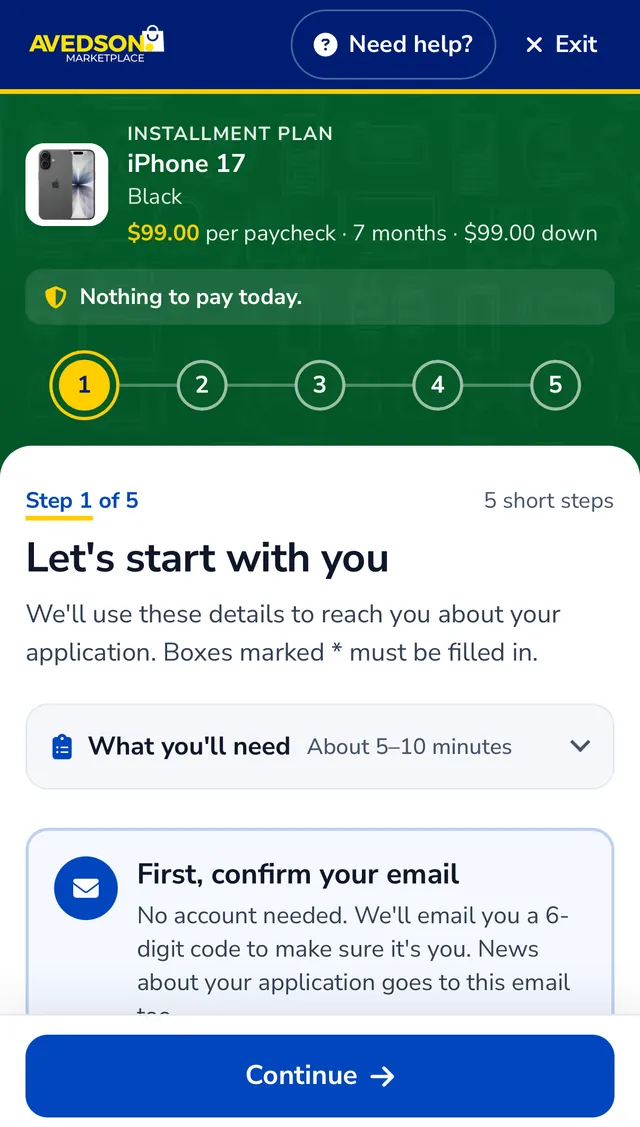
The application on a phone: the item and its price at the top, five numbered steps, and the first question, Let's start with you.

First, pick your plan

Both let you pay over time. The difference is when you get your item.

Installment

Take it home after the down payment

Then pay the rest per paycheck, every week or every month.

Guam and Saipan residents only

Layaway

We hold it while you pay

You take it home once it's fully paid.

Open to customers in any location

Compare the two plans in detail

From "Apply" to taking it home

Seven simple steps. You do the first five; we do the rest.
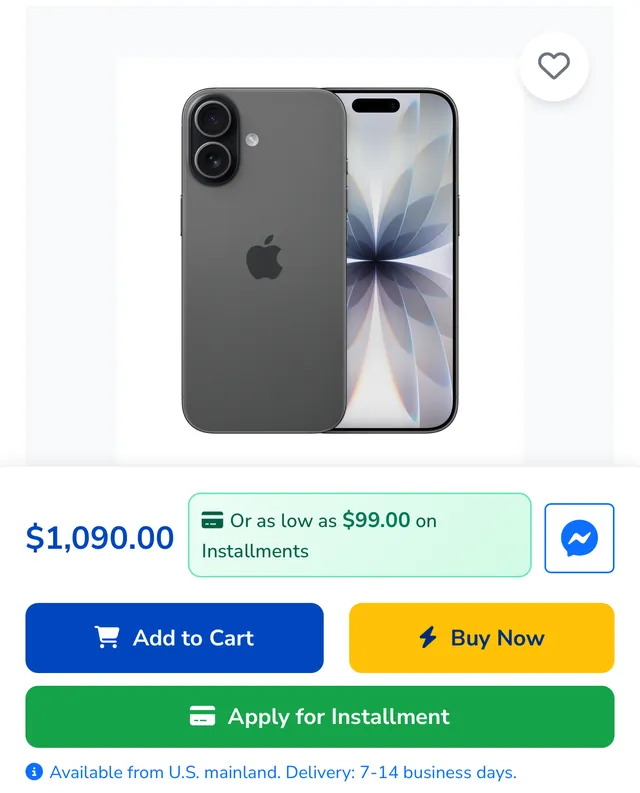
  1. An item's page with its price, the price per payment, and the green Apply for Installment button.

    Find your item and tap "Apply"

    On the item's page, tap Apply for Installment or Apply for Layaway. The price per payment is shown before you start.
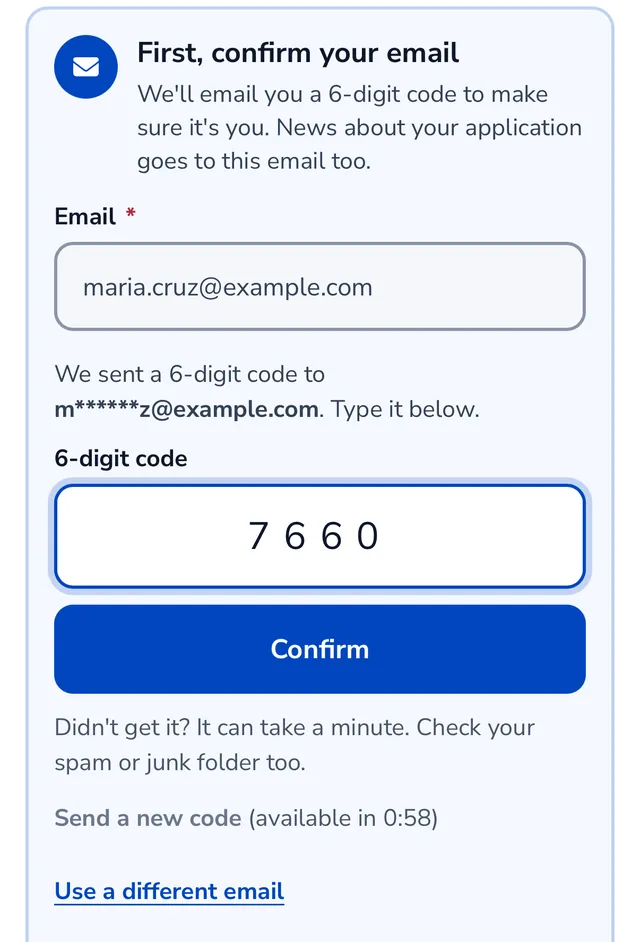
  2. The email step: your email address, a note that a 6-digit code was sent, and the box to type the code.
    Only if you don't have an account

    Confirm your email with a code

    Type your email and we send you a 6-digit code. Type the code in to carry on. No account yet? We create one for you when you send your application.

    No email? Check your spam folder. Already have an account? Tap Log in instead.
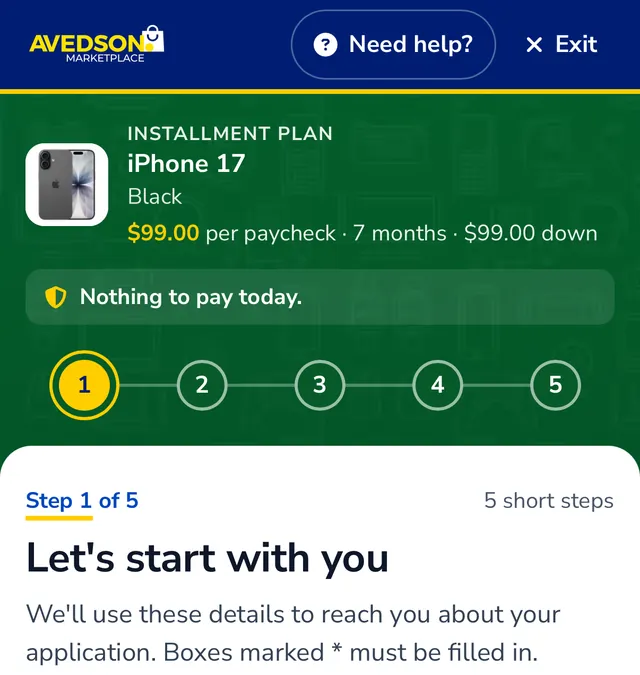
  3. The first step of the form: the item at the top, five numbered steps, and the question Let's start with you.

    Fill in 5 short steps

    Only the co-signer step is optional. Skip it if you like — we'll ask if we need one.
    1. About you Required Your name, birthday, phone and home address
    2. Work Required Where you work, your job title, work address and phone
    3. Co-signer Optional Someone who agrees to pay if you can't
    4. Documents Required A photo of 1 valid ID and 1 paycheck stub
    5. Sign & send Required How you'll pay, and your signature
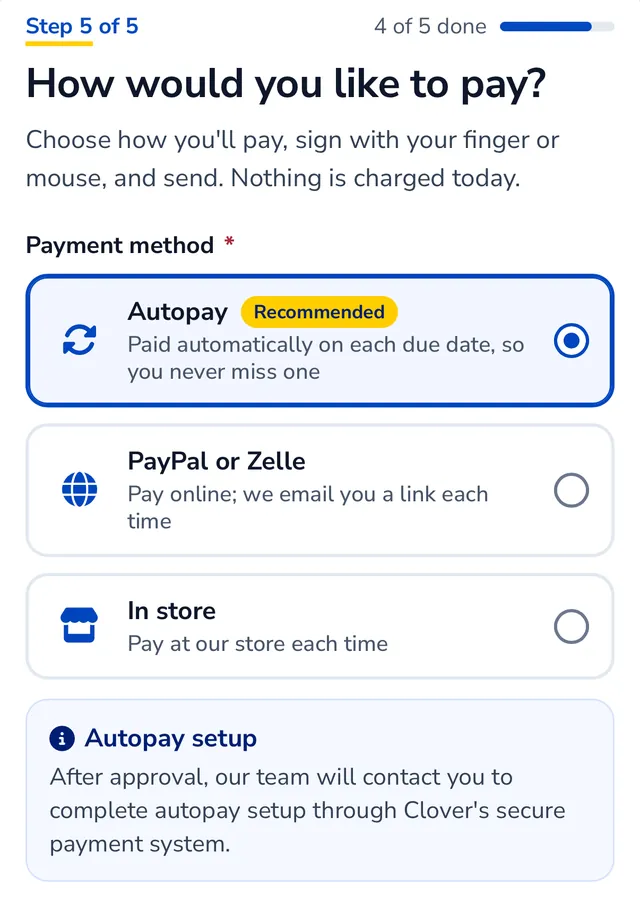
  4. Choosing how to pay: Autopay, tagged Recommended and already picked, then PayPal or Zelle, and In store.
    We recommend Autopay

    Choose how you'll pay

    With Autopay, each payment is taken from your card on its due date, so you never miss one. We set it up with you after you're approved, through Clover's secure card system.

    Or pay online with PayPal or Zelle (we email you a link each time), or pay at our store.
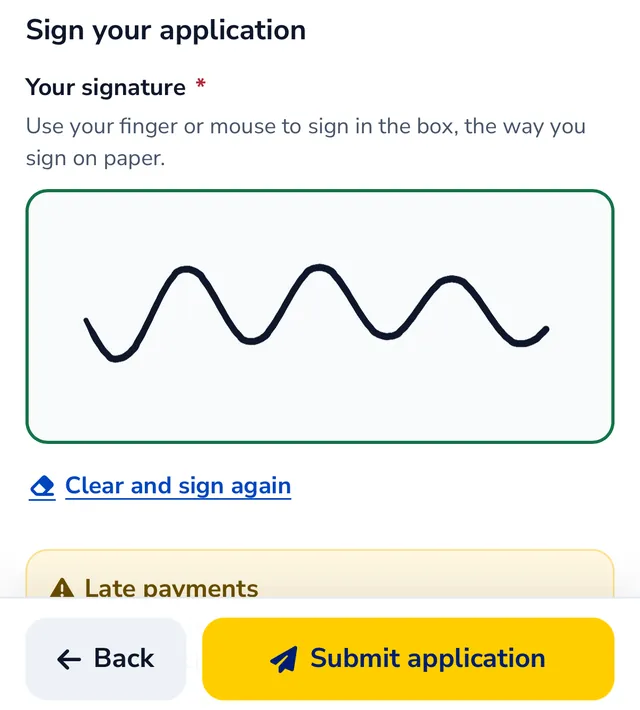
  5. Signing: a signature drawn with a finger in the box, and the yellow Submit application button.

    Sign with your finger and send

    Sign in the box the way you sign on paper, and tap Submit application. Nothing is charged.
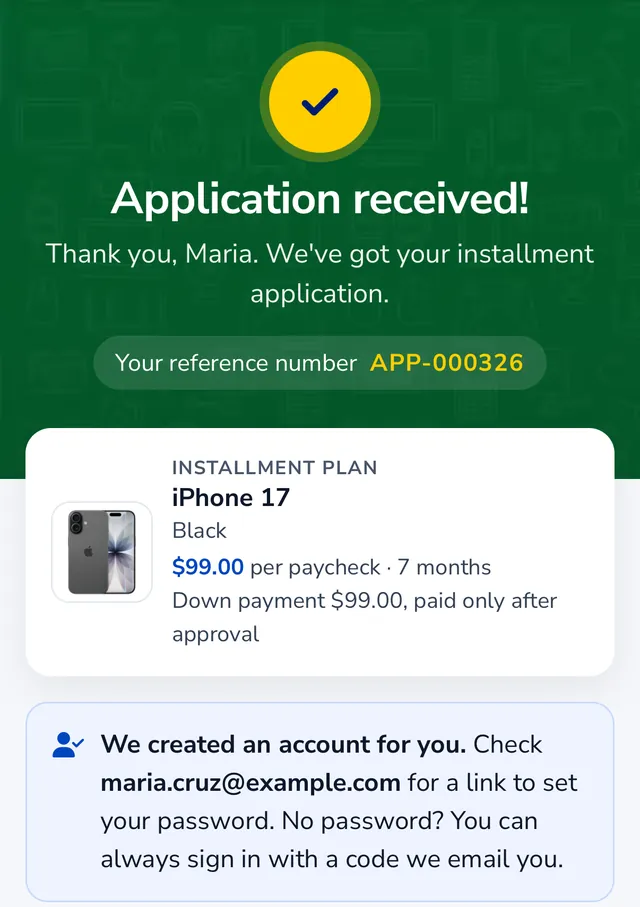
  6. The Application received page: a reference number, the item, and a note that your account was created.

    We review it and email you

    We email you as soon as there's news. If we need a photo of your ID, a paycheck or a co-signer, we ask by email, and you send it from your application page.

    No password yet? You can sign in with a code we email you.

  7. Pay the down payment, then get your item

    Once you're pre-approved, we email you how to pay your down payment and the date to pay it by — online, or at one of our stores.

    Installment

    Take it home — right away if it's in stock, or when it arrives. Then make your payments.

    Layaway

    We hold it while you pay. Once it's paid off, pick it up in Saipan or Dededo, or have it shipped.

Have these ready

Required

  • Your contact details and address
  • Your work details
  • A photo of 1 valid ID
  • A photo of your latest paycheck stub

Optional

  • A co-signer

Phone photos are fine.

Tips for clear phone photos

  • Good light Daylight or a bright room. No flash glare on the card.
  • Hold it straight Lay it flat and hold your phone straight above it.
  • All 4 corners The whole card or page fits in the photo.
  • Easy to read Sharp, not blurry. Zoom in to check before you send.
  • Front and back Two different IDs, or the front and back of one.
  • PDF, JPG or PNG Up to 5MB each. A PDF from your payroll site works too.

Questions people ask

No, you don't have to sign up first. Every application is kept in an account, so if you don't have one yet, we create it for you when you send your application, using the email you confirmed with a 6-digit code. We email you a link to set a password — or you can sign in later with a code we email you.

It can take a minute. Check your spam or junk folder, and check that your email address is spelled right. On the form, tap "Send a new code" — the code from the earlier email still works too. Still nothing? Call us or message us on Messenger and we'll help.

No. Applying is free, and nothing is charged when you send your application. You pay the down payment only after we approve your application: we email you how to pay it and the date to pay it by.

No, a co-signer is optional. A co-signer is someone who agrees to pay if you can't. Adding one can help you get approved, especially if you're new to Avedson. If we need one, we'll ask while we review your application.

A photo of 1 valid ID and 1 recent paycheck stub. A second ID and an older paycheck are optional, and so are your co-signer's documents. If we need anything else, we'll email you, and you can send it from your application page. Phone photos are fine: PDF, JPG or PNG, up to 5MB each.

Yes. The form is made for phones and takes about 5–10 minutes. You can take photos of your documents with your phone's camera, and you sign with your finger.

Installment is for Guam and Saipan residents only. Layaway is open to customers in any location. Not sure which one fits you? See how the plans work.

We email you as soon as there's news, and you can check your application any time when you sign in to your account. If you're pre-approved, the email tells you how to pay your down payment.

Ready? Find your item

Every item with a payment plan shows its price per payment on its page.

Need help applying? Call +1 671 487 4872 or message us on Messenger (opens in a new tab).

Install Avedson Marketplace

To install: tap the ⋮ (menu) button in your browser, then tap "Install app" or "Add to Home screen".

Install this app: tap (Share) then "Add to Home Screen"

To install this app on your iPhone or iPad, please open this page in Safari. Chrome on iOS does not support app installation.

Chipp ready support Avedson Assistant Loading assistant...
Storefront help

Ask about orders, account access, financing, affiliate payouts, or request a human follow-up for sensitive issues.

Hello! I can help with account access, orders, shipping, financing, and affiliate questions.